




The best SEO for Shopify starts with identifying what is holding your store back: pages shoppers cannot find, descriptions that do not answer their questions, repetitive catalog maintenance, or a poor mobile experience. Choose an app after you identify that problem.
For ecommerce sellers, a useful setup combines Shopify's native controls, clear collection and product pages, search performance reporting, and software that handles a defined workload. This guide compares four SEO apps by that workload, then shows how to improve a collection and judge the results without mistaking an app score for business progress.
Key Takeaways
- Choose Smart SEO for catalog metadata work, TinySEO for image maintenance, Yoast for content guidance, or Plug in SEO for a defined audit workflow, subject to each plan's limits.
- Use Shopify's existing SEO controls before paying to automate work you can manage comfortably yourself.
- Give a collection page a clear shopping purpose, useful product comparisons, and links to the products it contains.
- Measure relevant search clicks by page and query group. A falling overall click-through rate can coexist with growing traffic when the query mix changes.
Which Shopify SEO App Should You Choose?

Choose the app that addresses your most frequent SEO task at a price and workload limit your store can support. A small catalog with a few missing descriptions needs a different workflow from a store processing thousands of product images.
Start by checking what is already available. Shopify's built-in SEO features include automatically generated sitemaps and canonical tags, along with editable titles, meta descriptions, URLs, and image alt text. Canonical tags identify a preferred page version when similar URLs exist.
The following comparison uses official app listings checked on October 26, 2026. Each option addresses a distinct recurring job, and each is assessed by workflow, entry paid plan, and practical limits. The order follows those jobs and does not represent a scored ranking.
Smart SEO
- Workflow: Consider Smart SEO when maintaining metadata and image alt text across your catalog has become repetitive. Its Pro plan includes bulk editing, JSON-LD structured data, bulk image optimization, and detection of visits to missing pages.
- Verified Plan: Pro is advertised at US$14.99 per month.
- What to Know: Bulk editing and bulk AI generation are different features. The listing places bulk AI generation of metadata and alt text in the higher Business tier, so check the precise task you want to automate before choosing a plan.
TinySEO
- Workflow: Consider TinySEO's image optimization app, formerly TinyIMG, when product photography creates recurring compression, resizing, and alt-text work.
- Verified Plan: Beginner is advertised at US14permonthandincludes1,500imageoptimizationsmonthly.AdditionalimageoptimizationscostUS0.02 each.
- What to Know: Estimate image volume, including new launches, before comparing the subscription with your budget. Review image quality and the mobile product gallery after changes, especially where shoppers need close-up detail.
Yoast SEO
- Workflow: Consider Yoast SEO for Shopify when someone on your team actively writes and improves store content. Its Premium plan includes SEO analysis, readability analysis, automatic structured data, and bulk-editor import and export.
- Verified Plan: Yoast SEO Premium is advertised at US$19 per month.
- What to Know: The workflow needs an editor who can act on its suggestions. Treat an analysis indicator as a prompt to inspect the copy, then decide whether the proposed change helps the shopper understand the product.
Plug in SEO
- Workflow: Consider Plug in SEO when you want to audit a defined group of pages and work through identified issues. Starter includes structured-data tools and broken-link redirect tools.
- Verified Plan: Starter is advertised at US$4.99 per month, with scans of up to 30 pages and one comprehensive SEO audit monthly.
- What to Know: Count the pages you need to inspect. A collection, its products, and supporting content can make a small audit allowance restrictive, so assess coverage before treating the entry price as your likely ongoing cost.
These selected entry paid subscriptions range from US4.99toUS19. The listings describe monthly prices with recurring charges billed every 30 days, in USD. Features and allowances differ, and image overages can add cost; the prices compare the subscription commitment rather than equivalent functionality or SEO effectiveness.
Before installing an app, write down the task it will own, the pages it will affect, and how you will verify its output. Ask about export or reversal options for bulk changes. Start with a manageable sample and inspect the result before extending the workflow across the catalog.
Improve One Collection Before Scaling the Work
Choose a collection with a clear product offering and a real reason for shoppers to compare its items. Completing one useful page gives you a concrete model for the next collection and exposes which tasks would benefit from automation.
Match the Page to the Shopping Task
Imagine a store selling insulated lunch bags. The following examples illustrate page selection; they are not measured keyword-demand estimates:
- Someone searching for "insulated lunch bags" may need a collection where they can compare sizes and styles.
- Someone searching for a specific model needs its product page, with dimensions, features, and availability.
- Someone searching for "how to clean an insulated lunch bag" needs care instructions or a useful guide.
Check current search results for the terms relevant to your products and examine what the displayed pages help people do. Then choose the destination that can complete that task. A blog post should not become the default destination for every query just because it is easier to publish.
For an existing store, start with queries already associated with the collection in Search Console, then compare them with customer questions and your actual assortment. Keep related wording together when it describes the same shopping need. Create another page only when you can explain its separate purpose.
Rewrite the Collection Listing and Content
Shopify's collection settings instructions describe the editing path: open Products, select Collections, choose the collection, and edit its Search engine listing. Review the page title and meta description, then save your changes.
For the hypothetical lunch-bag store, assuming the assortment supports these details, a starting draft could be:
- Page Title: Insulated Lunch Bags for Work and School
- Meta Description: Shop insulated lunch bags for work and school. Compare sizes, carrying options, and care instructions to choose a bag for your daily meals.
- Visible Introduction: Compare compact and roomy lunch bags, check which containers fit, and choose carrying options that suit your commute or school day.
Adapt the wording to the products you actually sell. Avoid adding unsupported temperature-retention claims or using the same generic introduction across unrelated collections. If the existing URL already describes the collection accurately, changing it is unlikely to be the first task worth prioritizing.
Next, make the page useful beyond its metadata. Put the product choices where shoppers can reach them, then add concise guidance about capacity, cleaning, materials, and differences between models. Keep essential product facts in visible text even when photography or video also explains them.
Shopify's keyword and alt-text guidance recommends natural wording and image descriptions that explain what is shown. For example, "Open blue lunch bag holding two food containers" is useful when that is what the photograph depicts. Repeating "best insulated lunch bag" across every image does not explain those images.
Connect the Collection to Useful Product Detail
Google's ecommerce navigation guidance recommends linking from categories to products and explains that Googlebot generally does not submit searches into a store's search box. Make your collection and product links available through ordinary navigation.
Give each product page the details needed to make the final choice. In the lunch-bag example, that could include internal measurements, a photograph showing container fit, care instructions, and a demonstration of the carrying strap. Show the evidence behind a claim instead of adding another paragraph of generic enthusiasm.
A genuinely useful care or packing guide can support the collection through a relevant contextual link. It can also become a resource you share with relevant publications or partners because it answers a real question. Choose the subject for its usefulness to shoppers before deciding how often to publish.
Check the Technical Basics Before Adding More Software
Technical checks should establish whether your important pages can be discovered, understood, and used. Start with a representative collection and product page, then investigate broader patterns if you find a problem.
Verify Discovery and Indexing
Follow Shopify's sitemap submission instructions to verify your store in Search Console and submit its automatically generated sitemap. The file is available at the root path /sitemap.xml. Submission helps discovery, but it does not guarantee indexing or a completion date.
For an important missing page, use Google's URL Inspection tool to examine the indexed version, reported indexing status, and selected canonical URL. The live test checks the current page separately; a successful live test does not prove the page has already been indexed.
Respond to the actual finding. An accidentally excluded page, a missing navigation link, and an unexpected canonical choice require different investigations. Ask your developer to investigate unfamiliar template or indexing rules before making changes across every product.
Check Product Information and Structured Data
Google's product structured-data documentation describes how product information can qualify for richer search appearances. It also explains that on-page structured data and a Merchant Center feed can work together to help Google understand and verify product details.
Check that the information your theme, apps, and product feed output agrees with the visible product page. Focus on price, currency, availability, and the specific product being described. Give one person responsibility for coordinating changes so conflicting app settings do not go unnoticed.
Inspect the rendered result after a theme update or SEO-app change. A setting marked "enabled" is only the start of the check; the useful result is accurate information appearing on the actual page.
Review Mobile Usability and Performance
Open the collection and product page on a phone. Check the gallery, filters, variant selector, delivery information, and path to purchase. Note slow interactions or content that moves while you are trying to use it.
Google's page experience guidance says Core Web Vitals are used by its ranking systems, while good scores do not guarantee top rankings. Use performance reports to investigate specific loading, responsiveness, or layout problems, and judge proposed fixes alongside the shopping experience.
If a theme or app change is involved, use the practical checks in Stack Influence's Shopify theme guide to test with real products and integrations. Preview the changes before publishing and keep a record of what changed.
Use Search Data to Decide What to Improve Next
Measure whether relevant people are finding the pages you improved. Google's Search Console Performance report provides clicks, impressions, click-through rate, and average position, with options to examine different pages and queries. Click-through rate, or CTR, is clicks divided by impressions.
Compare the same market, device category, search type, and page group across comparable periods. Separate branded searches, which include your brand name, from relevant nonbranded searches where practical. Also inspect individual queries before deciding that a changed average calls for a rewrite.
Why Overall CTR Can Fall While Clicks Grow
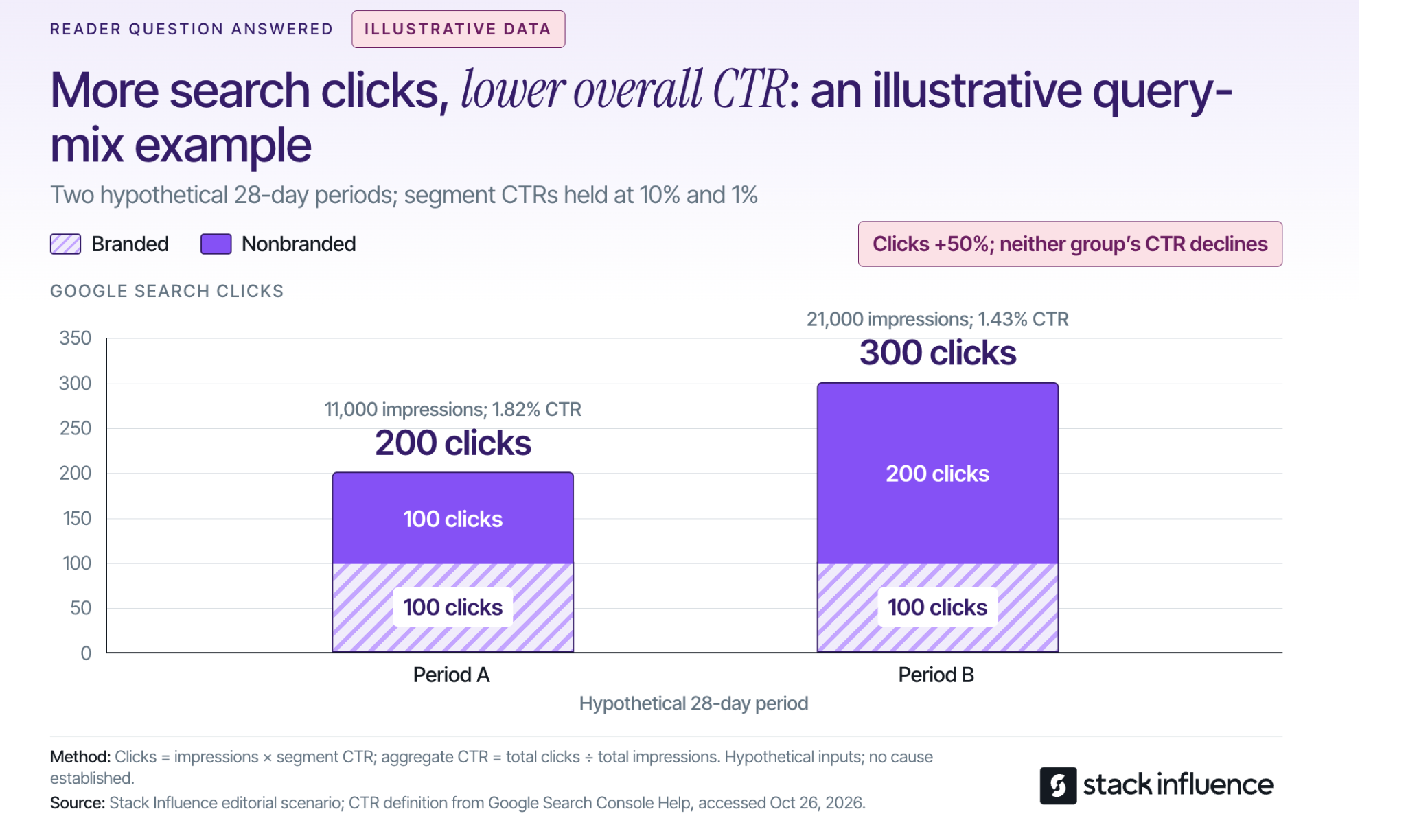
Consider this illustrative dataset for the same hypothetical store, using two 28-day periods of US mobile web-search data. It assumes complete, mutually exclusive branded and nonbranded groups; these are teaching assumptions, not observed Shopify results or a forecast.
- Period A: Branded searches generate 1,000 impressions at 10% CTR, producing 100 clicks. Nonbranded searches generate 10,000 impressions at 1% CTR, producing another 100 clicks. Total: 11,000 impressions and 200 clicks, for an aggregate CTR of 1.82%.
- Period B: Branded searches remain at 1,000 impressions, 10% CTR, and 100 clicks. Nonbranded searches reach 20,000 impressions at the same 1% CTR, producing 200 clicks. Total: 21,000 impressions and 300 clicks, for an aggregate CTR of 1.43%.
Total clicks increased from 200 to 300, or 50%, while overall CTR fell. Neither group's CTR deteriorated; the store appeared more often for the lower-CTR nonbranded group. The calculation shows why a changing query mix can make the overall percentage misleading when considered alone.
In real reporting, preserve the limitations of the data. Google's explanation of Search Console discrepancies notes that anonymized queries and truncated data can prevent filtered totals from reconciling with unfiltered totals. Treat branded versus nonbranded analysis as an approximation when those limits apply.
Connect the Finding to the Next Action
If a relevant page is not indexed, investigate the indexing explanation. If it appears for unsuitable queries, revisit its purpose and content. If an appropriate query produces impressions but weak click response, inspect the actual results, competing offers, and displayed title before choosing an edit.
After the visit, use store analytics to examine organic landing-page sessions and purchase activity within a consistent attribution setup. Search Console clicks and website sessions are separate measurements. If visitors reach the right products but struggle to buy, Stack Influence's guide to improving Shopify conversion rates provides a separate path for investigating product clarity and shopping friction.
Record publication dates, template changes, promotions, and major stock changes alongside the results. These details help explain what else changed during the comparison and prevent you from crediting every movement to the SEO app.
Choose a Setup You Can Keep Improving
Start with one collection, the products it contains, and a clearly defined recurring task. Improve the pages, verify what search engines and shoppers can access, and choose software when it makes that work easier to maintain.
The best SEO setup for your Shopify store is one you can operate consistently: useful pages, accurate product information, controlled changes, and measurements that tell you what to do next.