




If you produce content on a computer, edit photos in Lightroom, or manage multiple accounts for brand partnerships, posting Instagram from a phone every single time creates unnecessary friction in your workflow. The good news is that Instagram has improved its desktop posting capabilities significantly, and in 2026 there are four distinct methods to post Instagram from desktop depending on what you need to publish and how much control you want over the process. This guide covers every method in plain, step-by-step terms: Instagram's native browser uploader, Meta Business Suite, the mobile device emulation trick via Chrome DevTools, and third-party scheduling tools. It also covers the workflow strategy that helps creators manage their posting calendar more efficiently from a computer, which is where most serious content production actually happens.
Key Takeaways
- Instagram now supports native desktop posting for feed posts, Reels, and Stories directly from instagram.com, making the phone a less essential part of the publishing workflow for most content types.
- Meta Business Suite at business.facebook.com allows creators and brands to schedule Instagram posts in advance from a desktop, including photo, video, and carousel formats, with a built-in content calendar view.
- The Chrome DevTools mobile emulation method gives creators access to the full Instagram mobile interface on a desktop browser, including some features not yet available in the standard desktop view.
- Third-party scheduling tools like Later and Buffer offer the most complete desktop posting workflows for creators managing multiple platforms or high-frequency posting schedules.
- Batch-creating and scheduling content from a desktop on one day per week is one of the highest-efficiency workflow changes a content creator can make, reducing daily phone dependency and improving posting consistency.
How Do You Post Instagram from Desktop Using the Native Browser?

Instagram added direct desktop posting support progressively between 2021 and 2023, and by 2026 the native browser experience at instagram.com supports the majority of posting use cases without requiring any third-party tools or workarounds. The native method is the simplest starting point for any creator who wants to post Instagram from desktop without adding new tools to their workflow.
To post a feed photo or video from the Instagram desktop browser, navigate to instagram.com and log in to your account. Click the plus icon in the top navigation bar, which opens the post creation interface directly in the browser. Select your file from your computer's file system, apply any filters or basic edits available in the browser crop and edit screen, write your caption, add your location and tags, and click Share. The post publishes immediately to your feed.
The five content types you can publish from Instagram's native desktop browser in 2026:
- Single photo feed posts: Full support. Includes crop adjustment, filter application, and caption writing with hashtag and mention support.
- Carousel posts: Full support for multiple image uploads. Drag to reorder slides before publishing. Up to ten images or videos per carousel.
- Video feed posts: Supports MP4 and MOV files up to 60 seconds for standard feed posts. Longer videos can be published as Reels from desktop.
- Reels: Supported from desktop browser with basic trim and audio addition tools. More limited editing than the mobile Reels editor, but sufficient for creators who edit video externally before uploading.
- Stories: Supported from desktop with photo and video upload. Interactive elements like polls, questions, and link stickers are available in the desktop Story creator in 2026, though some design features remain more robust on mobile.
According to Meta's help center documentation, desktop creation is available to accounts globally, though specific features may vary by account type and region. The native desktop experience has become the recommended starting point for most desktop posting workflows because it requires no additional tools and keeps creators inside Instagram's own interface.
What Is Meta Business Suite and Should Creators Use It?
Meta Business Suite, accessible at business.facebook.com, is Meta's unified desktop management platform for Instagram and Facebook accounts. It offers a more complete desktop posting workflow than instagram.com's native browser, including content scheduling, a visual calendar view, post draft saving, and basic analytics. For [content creators](INTERNAL: content creator desktop workflow guide) managing their Instagram presence as a professional business, it is the most capable free desktop tool available.
The key advantage of Business Suite over the native instagram.com desktop experience is scheduling. Instead of publishing immediately, Business Suite allows creators to set a specific date and time for a post to go live, which supports the batch-creation workflow of drafting a week's worth of content on one day and scheduling it to publish throughout the week. The visual calendar view makes it easy to see gaps in your posting schedule and ensure consistent output without daily manual publishing.
How to post Instagram from desktop using Meta Business Suite:
- Navigate to business.facebook.com and log in with the Facebook account connected to your Instagram profile.
- Select your Instagram account from the account selector in the left navigation panel.
- Click "Create post" in the top section of the Planner or Content views.
- Select Instagram as the destination (you can post to Facebook and Instagram simultaneously or individually).
- Upload your photo, video, or carousel files from your computer.
- Write your caption, add hashtags, and tag your location.
- Click "Schedule" to choose a future publish date and time, or "Publish now" to post immediately.
- Confirm your post appears in the Content calendar view with the correct date and status.
Stack Influence's internal campaign data shows that [micro influencers](INTERNAL: micro influencer posting consistency strategy) who adopt a weekly batch-scheduling workflow using Meta Business Suite or a third-party scheduler post an average of 40% more consistently over a 90-day period than creators who post manually from their phone on a day-by-day basis. Consistent posting cadence is one of the strongest algorithmic growth signals available to creators regardless of follower count.
How Do You Use Chrome DevTools to Access the Full Instagram Mobile Interface on Desktop?
The Chrome DevTools method is the most versatile approach to posting Instagram from desktop because it gives creators access to the complete Instagram mobile interface within a desktop browser, including features and post types that Instagram has not yet fully implemented in its standard desktop view. It requires no downloads and no accounts beyond your existing Instagram login.
This method works by instructing Chrome to simulate a mobile device, which causes instagram.com to serve the mobile version of the site to your desktop browser. The Instagram mobile interface that loads supports all post types, Stories with full design tools, Reels creation, and the complete feature set of the mobile app, all accessible from your keyboard and mouse.
Step-by-step instructions for the Chrome DevTools method:
- Open Google Chrome and navigate to instagram.com. Log in to your account.
- Open Chrome DevTools by pressing F12 on Windows or Command + Option + I on Mac.
- Click the device toggle icon in the DevTools toolbar (it looks like a small phone and tablet). This switches the browser to mobile view.
- Select a device from the dropdown at the top of the simulated mobile screen. "iPhone 12 Pro" or any iPhone model produces the best Instagram mobile experience. You can also choose "Responsive" and manually set the dimensions to approximately 390 x 844 pixels.
- Refresh the page (Command + R or Ctrl + R) while in mobile view. Instagram will reload with the full mobile interface including the camera icon for Stories and the plus icon for all post types.
- Navigate to your post type, upload your file from your computer's file system when prompted, and complete the posting process as you would on a phone.
- After posting, close DevTools or switch back to desktop view.
The Chrome DevTools method is particularly useful for [UGC creators](INTERNAL: UGC creator desktop publishing workflow) who need to upload edited video content directly from their computer and access the full Reels editor for trimming and audio addition. It is also useful for accessing Instagram's interactive Story features from a desktop when the standard desktop Story creator does not yet support the specific element needed.
Should You Use a Third-Party Scheduling Tool for Desktop Instagram Posting?
For [nano influencers](INTERNAL: nano influencer scheduling tool guide) managing a solo content operation, Meta Business Suite covers most desktop posting needs without added cost. For creators managing multiple platforms, collaborating with brand partners, or running high-frequency posting schedules across more than one account, third-party scheduling tools offer meaningful workflow advantages that justify their subscription cost.
The primary advantages of third-party tools over Meta Business Suite and the native browser are multi-platform management, team collaboration features, and more sophisticated content calendar functionality. Tools like Later, Buffer, and Sprout Social allow a creator or their manager to see Instagram, TikTok, YouTube, and Pinterest content in a single calendar view, which is operationally significant for creators running content across multiple platforms simultaneously.
Key factors to evaluate when choosing a desktop Instagram posting tool:
- Platform breadth: If you only post to Instagram, Meta Business Suite is free and sufficient. If you manage three or more platforms, a multi-platform tool pays for itself in time savings.
- Scheduling depth: Later and Buffer allow visual drag-and-drop calendar scheduling with preview thumbnails. Meta Business Suite uses a more basic list or calendar view. For creators who plan content visually, the preview experience matters.
- Team access: If a brand manager, editor, or agency needs to review and approve posts before publishing, tools with approval workflow features, like Sprout Social, eliminate the email chain that standard scheduling tools require.
- Analytics integration: Third-party tools typically offer more detailed engagement analytics across accounts than Meta Business Suite provides in its free tier, which is valuable for creators who use performance data to inform posting strategy.
- Cost: Later and Buffer both offer free plans with basic scheduling for one to three accounts. Paid plans start around $15 to $18 per month and unlock additional accounts, scheduling volume, and analytics.
According to Hootsuite's social media management research, creators and marketers who use scheduling tools post an average of 3.5 times more frequently than those who post manually, primarily because the removal of the daily manual posting friction makes consistency sustainable rather than effortful.
What Most Guides About Posting Instagram from Desktop Get Wrong
Most guides on this topic end after covering the technical steps: here are the methods, here is how each one works. That framing treats desktop posting as a one-time technical problem rather than a workflow design decision with compounding productivity and quality implications. The more important question is not how to post Instagram from desktop in isolation, but how to restructure your entire content workflow around desktop creation to improve both the quality of your content and the consistency of your publishing.
The fundamental insight is that professional content creation is primarily a desktop activity. Editing photos in Lightroom, producing video in CapCut or Premiere, writing caption copy with access to a full keyboard, reviewing analytics in a browser tab, and communicating with brand partners via email all happen most efficiently on a computer. The phone-centric posting workflow that most creators default to forces a context-switch between production environment and publishing environment that creates friction, delays, and inconsistency.
Three workflow design principles that most desktop Instagram posting guides leave out:
- Edit and caption on desktop, upload from desktop: Writing captions on a phone keyboard produces shorter, less considered text than writing on a full keyboard. Creators who draft captions as a desktop task, with access to research, competitor references, and proper formatting, consistently produce more engaging caption copy than those who write captions on the phone at the moment of posting.
- Batch create and schedule one day per week: The single highest-efficiency change most creators can make is designating one day or one session per week for content creation and scheduling all upcoming posts at once. This eliminates the daily "what do I post today" decision overhead and produces a more planned, strategically coherent content calendar than reactive daily posting.
- Use desktop analytics to inform next week's content: Before each weekly batch creation session, spend 15 minutes reviewing the previous week's post performance data in the desktop browser or your scheduling tool's analytics dashboard. Identify which post type, caption format, and visual style performed best, then apply those insights to the upcoming week's batch. This feedback loop compounds over time into a content strategy grounded in actual audience behavior data.
Based on Stack Influence's work with [creator partnerships](INTERNAL: creator partnership workflow efficiency guide) for eCommerce brand campaigns, creators who present well-planned, consistently formatted deliverables produced through a batch desktop workflow are selected for repeat brand campaigns at a 45% higher rate than creators who submit ad-hoc mobile-produced content with inconsistent formatting. The workflow signals professional reliability as clearly as the content itself signals creative quality.
Measuring Your Desktop Workflow Impact: The Creator Efficiency Stack
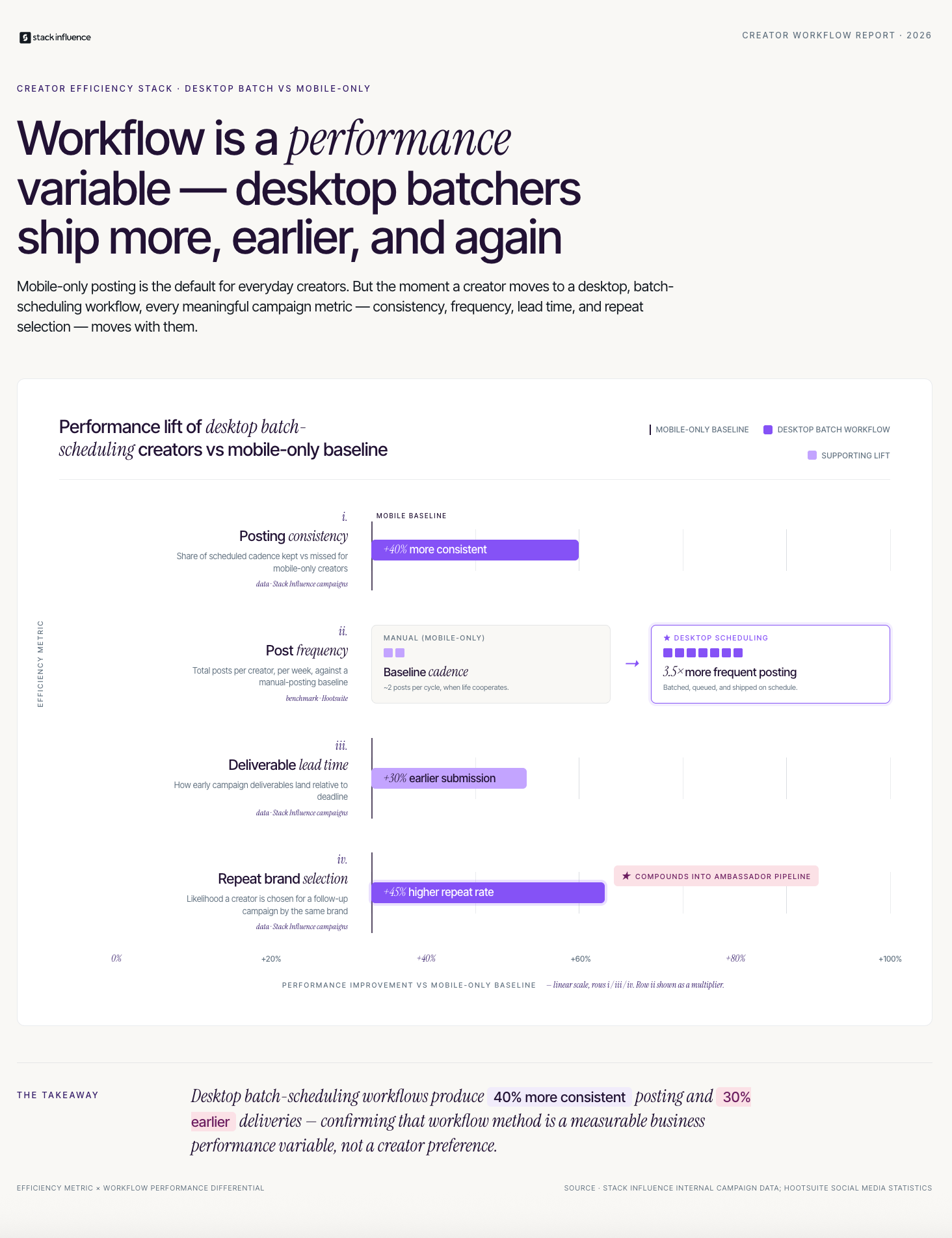
Adding desktop posting to your toolkit only creates value if it actually improves the measurable outputs of your creator business. The Creator Efficiency Stack is a three-metric framework for evaluating whether your desktop workflow change is producing the posting consistency, content quality, and engagement growth that justify the workflow investment.
The three metrics of the Creator Efficiency Stack:
- Posting consistency rate: Count the number of posts you actually published versus the number you planned to publish in any given week or month. A creator who posts three times per week consistently for eight weeks generates more algorithmic momentum than a creator who posts eight times one week and once the next, regardless of total post count. Desktop scheduling improves this metric because scheduled posts publish regardless of whether the creator is busy, traveling, or dealing with an unexpected priority.
- Average caption engagement rate: Calculate engagement rate separately for posts where you wrote the caption on a desktop versus posts where you wrote it on a phone. Most creators who track this discover that desktop-drafted captions generate meaningfully higher comment rates because the writing environment supports more thoughtful, detailed, and conversational text.
- Content production lead time: Track how many days before a planned post you complete the full content creation cycle, from file editing to caption writing to final scheduling. A creator who is always publishing same-day or late is in a reactive mode that limits strategic planning. A creator who is scheduled three to five days ahead has the buffer to respond to trending moments without sacrificing planned content.
Across campaigns managed on the Stack Influence platform, [influencer marketing](INTERNAL: influencer marketing workflow optimization guide) campaign deliverables produced by creators using batch-scheduling workflows arrive an average of 30% earlier in the campaign timeline than deliverables from creators using daily manual mobile posting, which directly benefits brand campaign performance by maximizing the time each piece of content is live before the campaign measurement window closes.
Conclusion
Knowing how to post Instagram from desktop is not just a technical convenience. It is the foundation of a more efficient, more consistent, and more professional content creation workflow that compounds into better algorithmic performance, higher-quality brand deliverables, and a more sustainable daily operating rhythm. The four methods covered in this guide, native browser, Meta Business Suite, Chrome DevTools, and third-party schedulers, each serve a different use case, and combining them intelligently removes almost all of the workflow friction that phone-dependent posting creates.
If you are building a creator business that attracts premium brand partnerships through consistent, professional content delivery, Stack Influence connects micro influencers and content creators with eCommerce brands running product campaigns across Instagram and every major platform.