




A Facebook login can protect far more than a personal profile. For content creators, it may control a Page, audience history, Messenger conversations, linked Instagram assets, advertising permissions, and active brand partnerships. Losing access can therefore interrupt publishing while exposing collaborators, followers, and campaign information.
This guide explains how to change Facebook password settings on iPhone, Android, and desktop. It also covers forgotten-password recovery, suspected account takeovers, and a creator-specific security process for protecting everything connected to the account.
The central lesson is simple: changing the password is the first step, not the entire security fix.
Key Takeaways
- Facebook currently places password controls under Accounts Center, then Password and security.
- Changing, resetting, and recovering a Facebook password are three different workflows.
- A long, unique password is safer than a short password with predictable substitutions.
- After changing the password, review active sessions, recovery details, two-factor authentication, and Page access.
- Creators and managers should use role-based permissions instead of sharing login credentials.
Change, Reset, or Recover: Choose the Right Route
The correct Facebook password workflow depends on what access you still have. Before tapping through settings, identify which of these three situations applies:
- Change: You are signed in, know the current password, and want to replace it.
- Reset: You cannot remember the password, but you still control the email address or phone number attached to the account.
- Recover: You suspect someone changed your login details, or you no longer control the listed recovery methods.
When you are already signed in, Meta’s current password instructions direct you through Accounts Center, Password and security, and Change password. The same help flow also explains how to start a reset when the current password is unknown.
Use this quick decision test:
- Do you know the current password?
- Do you control at least one recovery email address or phone number?
- Are you confident no one else changed the account?
A “yes” to all three usually means a normal password change is appropriate. A missing password points to reset. An unexpected login, changed recovery method, unauthorized post, or lockout points to account recovery.
This distinction matters for anyone using Facebook professionally. A creator may have Professional Mode, a Facebook Page, linked Instagram assets, or brand communications connected to the underlying profile. The guide to becoming a digital creator on Facebook explains how those creator features build on the account itself.
Build a Stronger New Facebook Password
A replacement password should be long, unique, and unrelated to information followers or brand contacts can discover. Avoid recycling a password used for Instagram, email, editing software, affiliate dashboards, UGC platforms, or another social account.
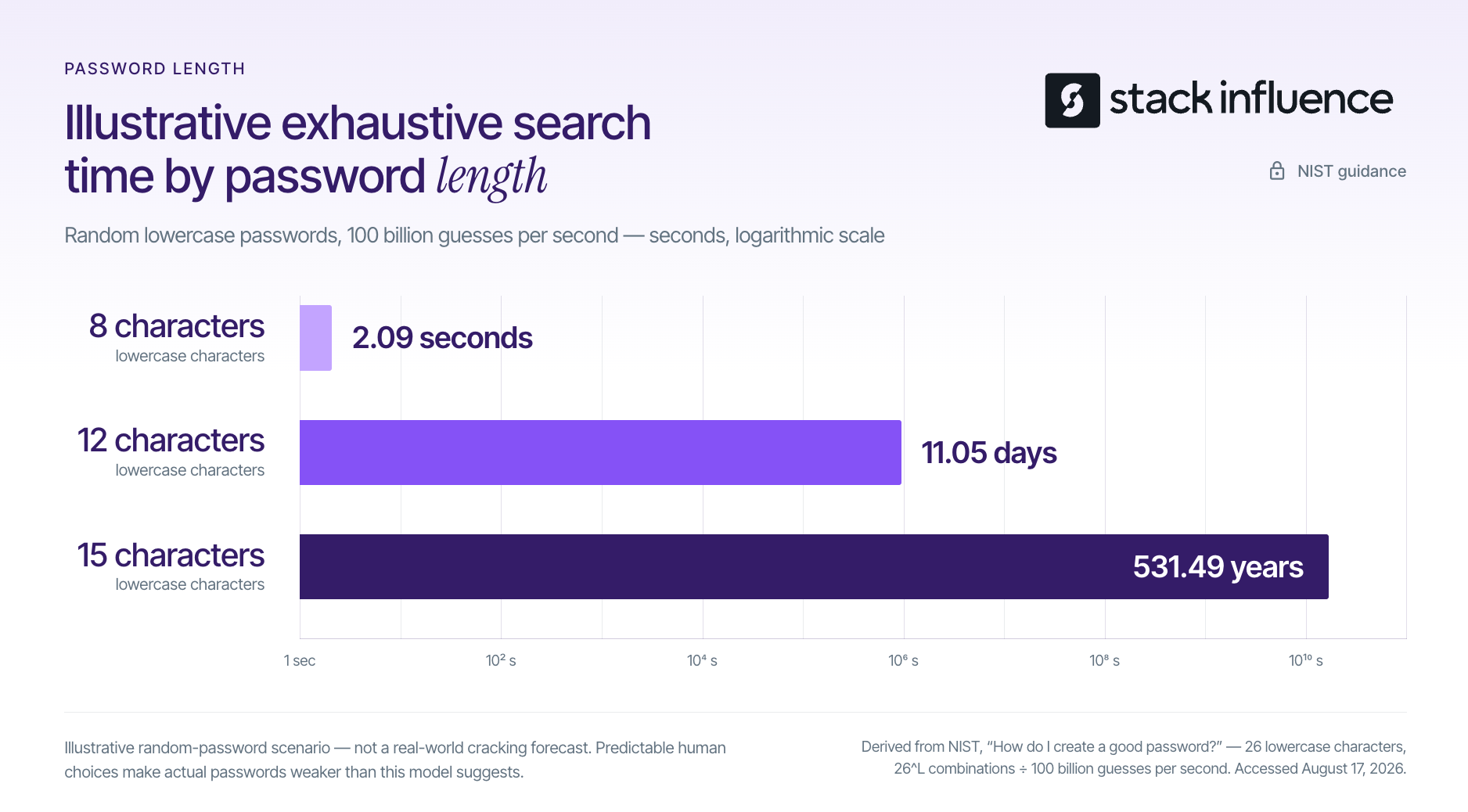
The National Institute of Standards and Technology’s password guidance recommends using multifactor authentication, a password manager, and passwords of at least 15 characters when passwords are required. NIST emphasizes length because each additional character expands the number of possible combinations.
The effect is exponential. Using NIST’s illustrative assumption of 26 randomly selected lowercase letters and 100 billion guesses per second, an exhaustive search would take approximately:
- 2.09 seconds for an eight-character password
- 11.05 days for a 12-character password
- 531.49 years for a 15-character password
These figures are a mathematical illustration, not a real-world prediction. Human-created passwords often contain names, phrases, dates, or predictable patterns that attackers test before random combinations. Online login systems can also limit attempts, while stolen password databases create a different attack environment.
Use these practical rules when creating the new password:
- Prioritize length: Aim for at least 15 characters when the platform accepts it.
- Make it unique: Never reuse the Facebook password on email, Instagram, TikTok, or business tools.
- Use a password manager: Let the manager generate and store an unpredictable credential.
- Avoid public clues: Do not use your handle, niche, birthday, pet, brand name, campaign name, or follower milestone.
- Do not use substitutions as the main defense: Replacing an “a” with “@” does not make a familiar word unpredictable.
- Keep it private: Managers, editors, agencies, and brand partners should receive appropriate access rather than the password.
Creators managing several profiles also need separate credentials. The guide to managing multiple Instagram accounts covers the related challenge of keeping account access organized without reusing passwords.
How to Change Facebook Password on iPhone or Android
To change your Facebook password in the mobile app, open Menu, choose Settings and privacy, select Settings, open Accounts Center, and tap Password and security. Choose Change password, select the correct Facebook account, enter the current password and new password, then save the change. Menu placement can vary by device and app version. If you can't remember your current login details but previously stored them on your phone, you may need to find saved passwords on Android before you can successfully complete this update.
Follow these steps:
- Open the Facebook app.
- Tap the Menu or profile-picture icon.
- Select Settings and privacy.
- Tap Settings.
- Open Accounts Center.
- Select Password and security.
- Tap Change password.
- Choose the Facebook account you want to update.
- Enter the current password.
- Enter and confirm the new password.
- Save the change.
On some versions of the app, Accounts Center appears near the top of Settings. On others, Facebook may show Password and security more prominently. Follow the visible security path rather than assuming every screen will match an older tutorial exactly.
Confirm that you selected the Facebook account, especially when Facebook and Instagram appear together in Accounts Center. Connected accounts can make the screen look unified even though you are changing a credential for a specific account.
If you manage a Facebook Page, secure the personal profile that has access to it. The Page itself is managed through assigned Facebook access rather than a separate public-facing Page password. Creators establishing a new presence can review the full Facebook business Page setup process.
How to Change Facebook Password on Desktop
To change your Facebook password on a computer, select your profile picture, open Settings and privacy, choose Settings, and enter Accounts Center. Select Password and security, click Change password, choose the correct Facebook account, and enter the existing and replacement passwords. Save the update after checking that the intended account is selected.
The desktop process is:
- Sign in to Facebook in a trusted browser.
- Click your profile picture in the upper-right area.
- Choose Settings and privacy.
- Select Settings.
- Open Accounts Center.
- Click Password and security.
- Select Change password.
- Choose your Facebook account.
- Enter the current password and the new password.
- Save the update.
Do not let a password manager overwrite the wrong saved credential when several Meta accounts appear in the browser. Confirm the username associated with the saved entry before accepting an automatic update.
Creators who connect Meta properties should also understand which assets are linked. The guide to linking Instagram to Facebook explains how account connections support cross-platform publishing and management.
How to Reset Facebook Password When You Forgot It
To reset a forgotten Facebook password, start at the Facebook login screen and select Forgot password. Search using the email address, phone number, full name, or username associated with the account. Choose the correct account, receive a recovery code through an available method, and create a new password after Facebook verifies access.
Use this sequence:
- Open the Facebook login screen.
- Select Forgot password?
- Enter an email address, phone number, full name, or username connected to the account.
- Select the correct profile from the results.
- Choose an available recovery method.
- Enter the code or follow the recovery link Facebook sends.
- Create a new, unique password.
- Complete the security review described later in this guide.
Use a device and network you have previously used for Facebook when possible. Familiar login signals may help Facebook recognize the recovery attempt.
Never send the verification code to a person claiming to be Meta support, a brand representative, a manager, or a recovery specialist. A code that proves account ownership should be entered only into the official Facebook recovery flow.
When You No Longer Control the Email or Phone
Losing access to the listed email address or phone number moves the problem from a normal reset to account recovery. Meta recommends opening its recovery process for unavailable contact information from a device or browser previously used with the account.
Facebook may ask you to identify the account, confirm previous information, or provide another reachable contact method. Follow the prompts shown for the specific account rather than using unofficial recovery services.
When a code or reset email does not arrive:
- Check spam, junk, promotions, and filtered-message folders.
- Confirm that the partially displayed destination belongs to you.
- Wait several minutes before requesting another code.
- Check whether your phone can receive short-code messages.
- Avoid repeatedly submitting requests in rapid succession.
According to Meta’s password-reset troubleshooting guidance, users who reach the daily reset-request limit may need to wait 24 hours before trying again.
The 5R Creator Account Security Reset
The 5R Creator Account Security Reset turns a password update into a complete security review. The five actions are Replace, Revoke, Recover, Reinforce, and Review. Complete them after a routine password change and immediately after any suspicious activity.
1. Replace the Credential
Create a password that is long, unique, and stored safely. Do not make a minor variation of the previous password, such as adding a new number or changing one symbol.
A reused password creates a chain reaction. If a separate app, email service, or creator tool exposes the same credential, an attacker can test it against Facebook and other services.
2. Revoke Unneeded Sessions
A changed password should not be treated as proof that every existing session has disappeared. Review the account’s device history and explicitly remove sessions you do not recognize or no longer need.
Meta places this control under Accounts Center, Password and security, and Where you’re logged in. Its session-management instructions explain how to select an account, inspect active sessions, and log out individual or multiple devices.
Review:
- Phones, tablets, and computers you no longer use
- Old browsers
- Shared studio or school devices
- Devices used by former managers or team members
- Locations and login times you do not recognize
An unfamiliar location does not always prove an intrusion because internet routing can affect location estimates. An unfamiliar device combined with unknown messages, changed details, or new Page access deserves immediate investigation.
3. Recover Control of Recovery Methods
Confirm that the email address and phone number attached to Facebook belong to you and remain accessible. Remove unfamiliar contact information and replace old school, work, agency, or temporary addresses before they become a lockout problem.
Secure the recovery email account with its own unique password and two-factor authentication. Anyone who controls that inbox may be able to request password resets for Facebook and other creator tools.
Creators should also document which private email address owns the account. A brand partnership inbox can receive business inquiries, but the core recovery address should remain under the creator’s control.
4. Reinforce the Login
Enable two-factor authentication so a password alone is not enough to sign in. Facebook’s two-factor authentication settings are available through Accounts Center, Password and security, and Two-factor authentication. Available methods can include an authentication app, text-message codes, or a security key.
The evidence for adding a second factor is strong, although it should not be misrepresented as Facebook-specific research. A Microsoft Research study of commercial accounts found that MFA was associated with a 99.22% reduction in compromise risk across the measured population and a 98.56% reduction among accounts with leaked credentials. The overall population covered suspicious activity reviewed from April 22 through September 22, 2022.
Dedicated authentication apps outperformed SMS in the Microsoft study, but both methods provided substantially more protection than using no MFA. The Cybersecurity and Infrastructure Security Agency’s MFA guidance also recommends enabling MFA on social media, email, and other important accounts.
Store any recovery codes somewhere separate from the Facebook account and primary phone. A password manager or another secured offline location is more useful than an unprotected screenshot in the same device’s photo library.
5. Review Connected Assets
Inspect everything the Facebook profile can control, not only the profile timeline. A compromised creator account can affect Pages, advertising access, linked Instagram accounts, messages, saved payment methods, and brand communications.
Review:
- Facebook Page access and administrators
- Linked Instagram profiles
- Business and advertising permissions
- Recently authorized apps and websites
- Recent posts, comments, Stories, and messages
- Changes to account details
- Payment or billing activity
- Pending brand and creator partnership conversations
Third-party apps deserve particular attention. The Stack Influence guide to Instagram unfollower apps explains why creators should avoid services that request a social-platform password instead of using an official authorization method.
The 5R sequence corrects a common mistake: treating the password as the whole account. The password protects one entrance, while sessions, recovery channels, permissions, and connected assets determine whether the creator has actually regained control.
What to Do If You Think Facebook Was Hacked

If you suspect a Facebook account takeover, use Facebook’s hacked-account recovery flow from a familiar device, secure the connected email account, change the password, revoke unknown sessions, restore recovery information, and enable two-factor authentication. Then inspect Pages, ads, posts, messages, and linked accounts for unauthorized activity. A password change alone may leave altered permissions behind. For additional cybersecurity guidance, Cybernews offers practical resources covering account security, online privacy, and common digital threats, which can help creators strengthen their broader security practices.
Start with Facebook’s hacked-account process, not a link sent through an unexpected email, direct message, or comment. Type the address yourself or navigate through Facebook’s official Help Center.
Then complete this containment sequence:
- Secure the email account connected to Facebook.
- Recover Facebook through the official process.
- Replace the password with a unique credential.
- Log out unfamiliar devices.
- remove contact methods, apps, or Page access you did not add.
- Turn on two-factor authentication.
- Check posts, comments, Stories, messages, and advertisements.
- Warn contacts if the account sent suspicious links or requests.
- Notify active brand partners when campaign communications or permissions may have been affected.
The Federal Trade Commission’s hacked social-account guidance similarly recommends changing the password, signing out other devices, enabling two-factor authentication, checking recovery information, reviewing unauthorized activity, and notifying contacts.
Be cautious with anyone promising guaranteed account recovery for an upfront payment. Do not share passwords, authentication codes, identity documents, or remote device access through an unsolicited message.
Creator Teams Should Share Access, Not Passwords
Role-based access lets creators collaborate without turning one password into a team credential. Managers, editors, agencies, and brand partners should receive only the permissions needed for their work, with access removed when the assignment ends.
Facebook Pages are managed through people who have Facebook access or task access. Meta’s Page access documentation explains that different access levels can permit content management, messages, ads, insights, or full Page control.
Use these operating rules:
- Assign the least powerful access level that completes the task.
- Keep full-control access limited to trusted long-term owners.
- Remove former employees, managers, editors, and agencies promptly.
- Review access after every major campaign or staffing change.
- Keep a written record of the account owner and backup administrator.
- Never send one-time authentication codes through a group chat.
- Do not let a temporary collaborator replace the recovery email or phone.
The same principle applies to influencer marketing permissions. Influencer whitelisting on Instagram and Facebook and Meta Partnership Ads use controlled permissions and platform workflows rather than informal password sharing.
Brands should document these rules in a broader social media policy. That policy can define who owns accounts, who may approve access, how credentials are stored, and how incidents are escalated.
For content creators participating in brand deals, UGC production, ambassador programs, or product seeding, secure access protects both creative work and campaign continuity. Stack Influence’s creator campaign workflow connects creators with gifted-first product-seeding opportunities, making reliable account access and communication part of completing creator partnerships professionally.
Secure the Account Before the Next Post
Learning how to change Facebook password settings takes only a few minutes when you still know the current credential. The more important work begins immediately afterward: remove old sessions, confirm recovery information, enable two-factor authentication, and review every Page or connected asset the profile controls.
For content creators, account security is part of protecting the business behind the content. Complete the 5R Creator Account Security Reset now, document who has access, and return to publishing with fewer hidden risks around your audience, brand deals, and creator partnerships.